
E-Billing: Increasing a Payment Plan Contract
There are common instances where a term Nelnet Payment plan contract will need to be increased. For example, there are common mid-term charges that are assessed - such as for book rental fees, car permits, private music lessons, etc.
Please follow these steps to adjust your payment plan with our partner Nelnet Campus Commerce.
To increase a payment plan contract:
- Log in to your Nelnet account:
- If you are a student, go to hwsportal.hws.edu and log in to Campus Solutions
On the home page, click the tile Student Financials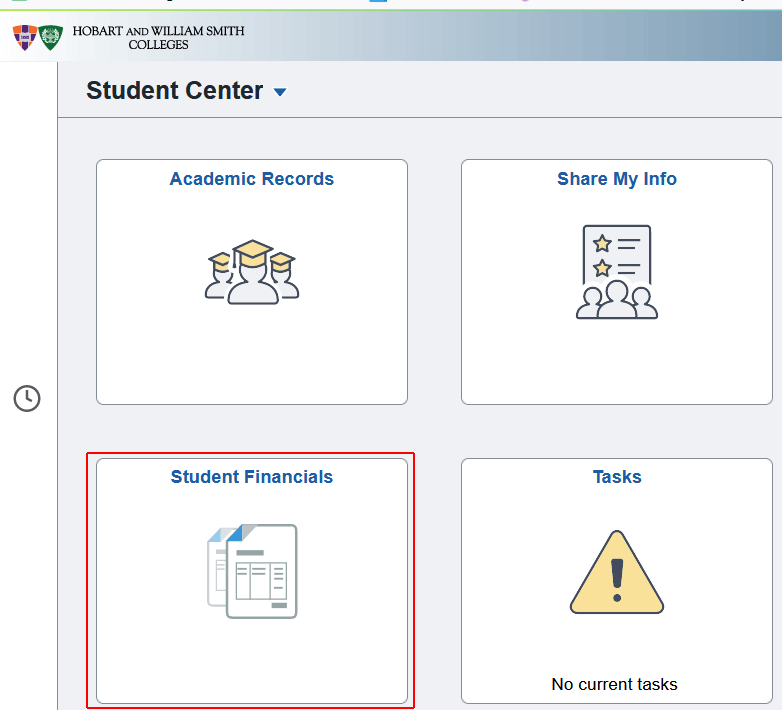
Under the Student Accounts section, click View Bill and Payment Options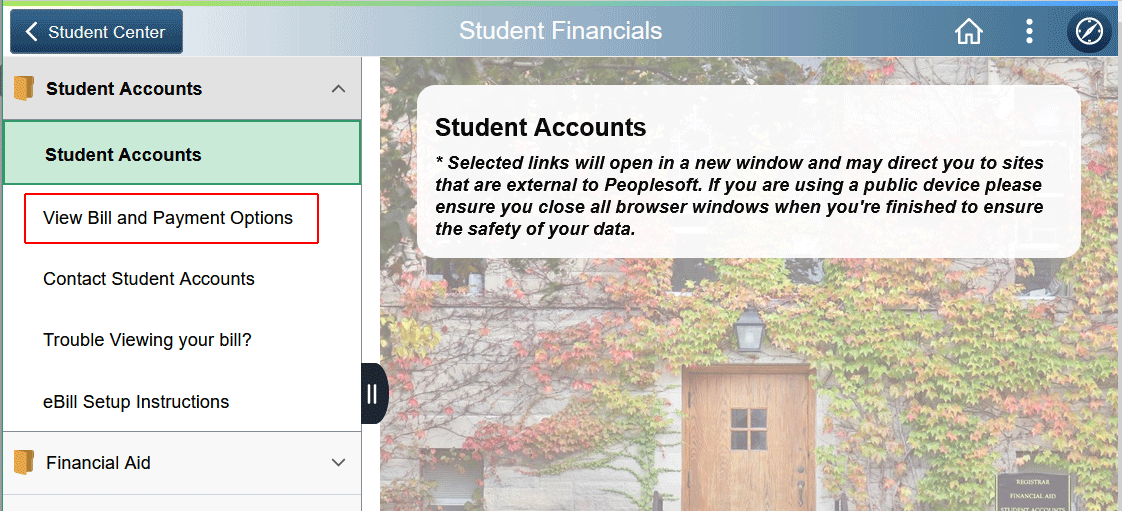
- If you are an authorized party, go to https://online.campuscommerce.com and log in
- If you are a student, go to hwsportal.hws.edu and log in to Campus Solutions
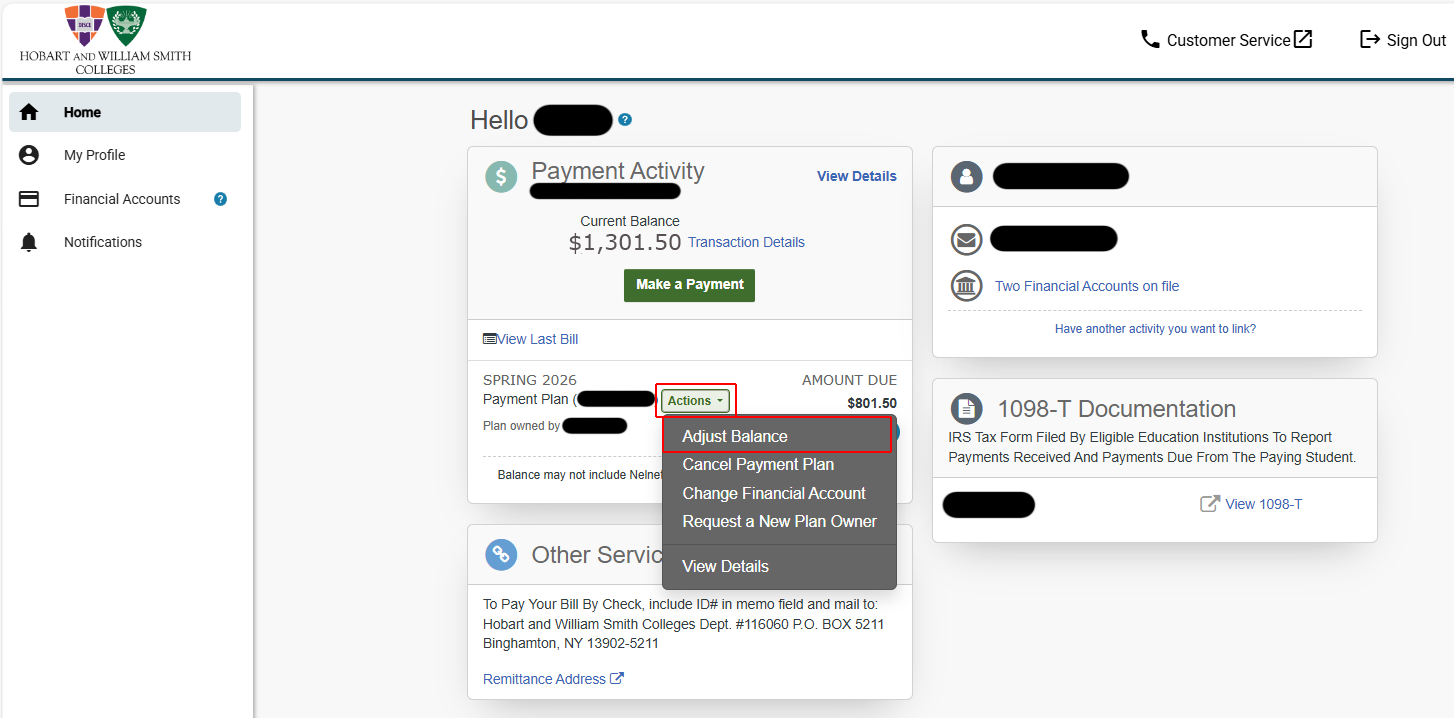
- Compare the total Current Balance owed to the Payment Plan amount due (which represents the upcoming remaining installment payments)
- If there is a shortfall, next to the payment plan contract number, click on Actions and from the drop down menu select Adjust Balance
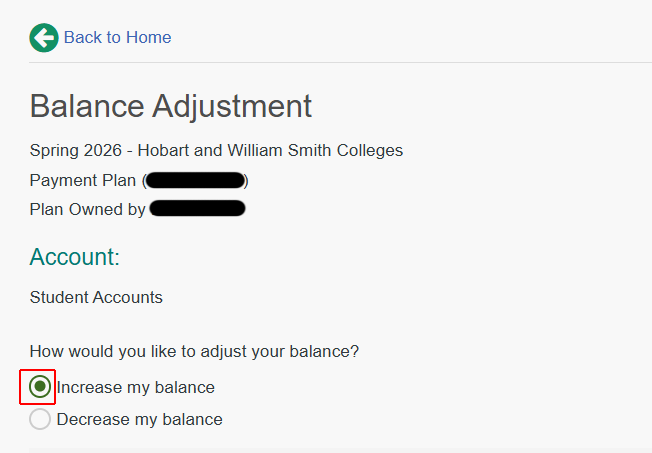
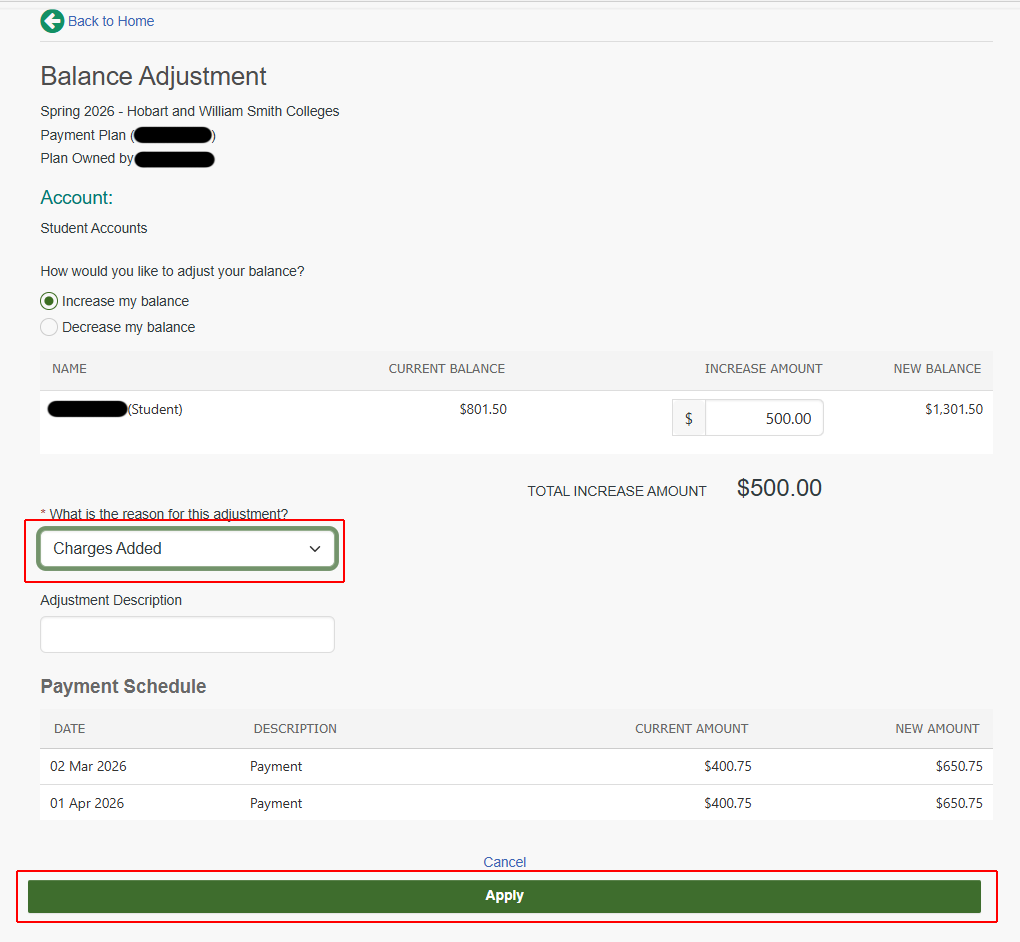
- On the Balance Adjustment page, select Increase My Balance
- In the Increase Amount field, enter in the incremental amount that you want to add onto your payment plan contract.
In this example, $1,301.50 is the total owed, but only $801.50 is scheduled in future installment payments. So the plan needs to be increased by $500. Enter $500 into the box for Increase Amount.
- Under the reasons drop down menu, select Charges Added
Nelnet will then show you how the increase will be spread evenly over the remaining payments. You will see a column for the original amount of your contract and a column showing the increased installment amount. - Click Apply
You will then receive a confirmation e-mail from Nelnet letting you know that the change was processed.
The process works in a similar manner if you needed to decrease your payment plan contract - you would instead choose Decrease My Balance as shown in the second screen. You would again enter in the incremental amount that the payment plan was exceeding the current balance owed.